
Browse all guides
Get paid
Submit an e-invoice
Send a completed sales invoice to LHDN through MyInvois. Duitbooks adds the e-invoice details and QR code to it.
Before you start: Connect MyInvois, save your own TIN and the customer's TIN, and mark the invoice completed. The invoice date must be within the last 72 hours.
Steps
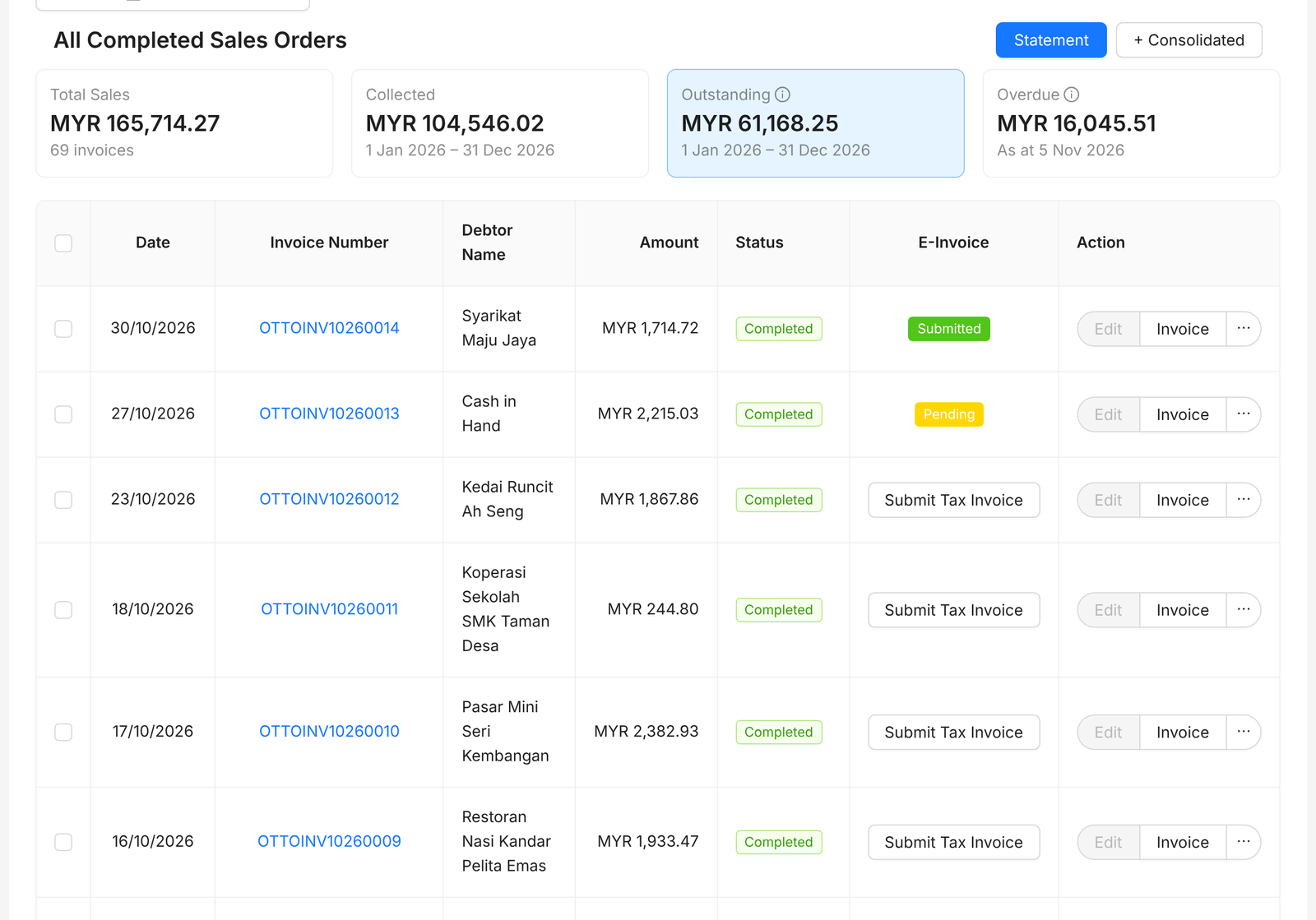
- 1Go to Sales › Completed.
- 2Find the invoice. Click Submit Tax Invoice in the E-Invoice column.
- 3Wait for the message saying the invoice was submitted. The E-Invoice column then shows its status, Pending or Submitted.
- 4Open the invoice. The printed invoice now carries a QR code, the e-invoice number, UUID and validation date.
Tip: You can also open the invoice and click Submit Tax Invoice at the top of the page.
FAQ
It says the Tax Identification Number is required.
Either your TIN or the customer's TIN is missing. Add it in Business Information or on the customer, then submit again.
It says the invoice date must be within 72 hours.
Duitbooks only submits invoices dated in the last 72 hours. Submit invoices soon after you complete them.
How do I cancel a submitted e-invoice?
Open the invoice and click Cancel Tax Invoice. Enter a reason when asked.
My customer doesn't need an e-invoice.
In Sales › Completed, click + Consolidated to group those sales into one consolidated e-invoice.