
Browse all guides
Customers & suppliers
Add a customer
Save a customer once. Their details fill in on every quotation and invoice, ready for e-invoicing.
Before you start: Have the customer's company name, business registration number (SSM), billing address and TIN.
Steps
- 1Go to Contacts › Customers and click Add Customer.
- 2Enter the Customer Name and Business Registration No. (SSM).
- 3Enter the Billing Address, City and State.
- 4Under Tax & e-Invoice, enter the customer's TIN.
- 5Click Validate to check the TIN with MyInvois.
- 6Add the MSIC Code and Business Activity Description if they apply.
- 7Pick the Payment Terms.
- 8Click Save Customer.
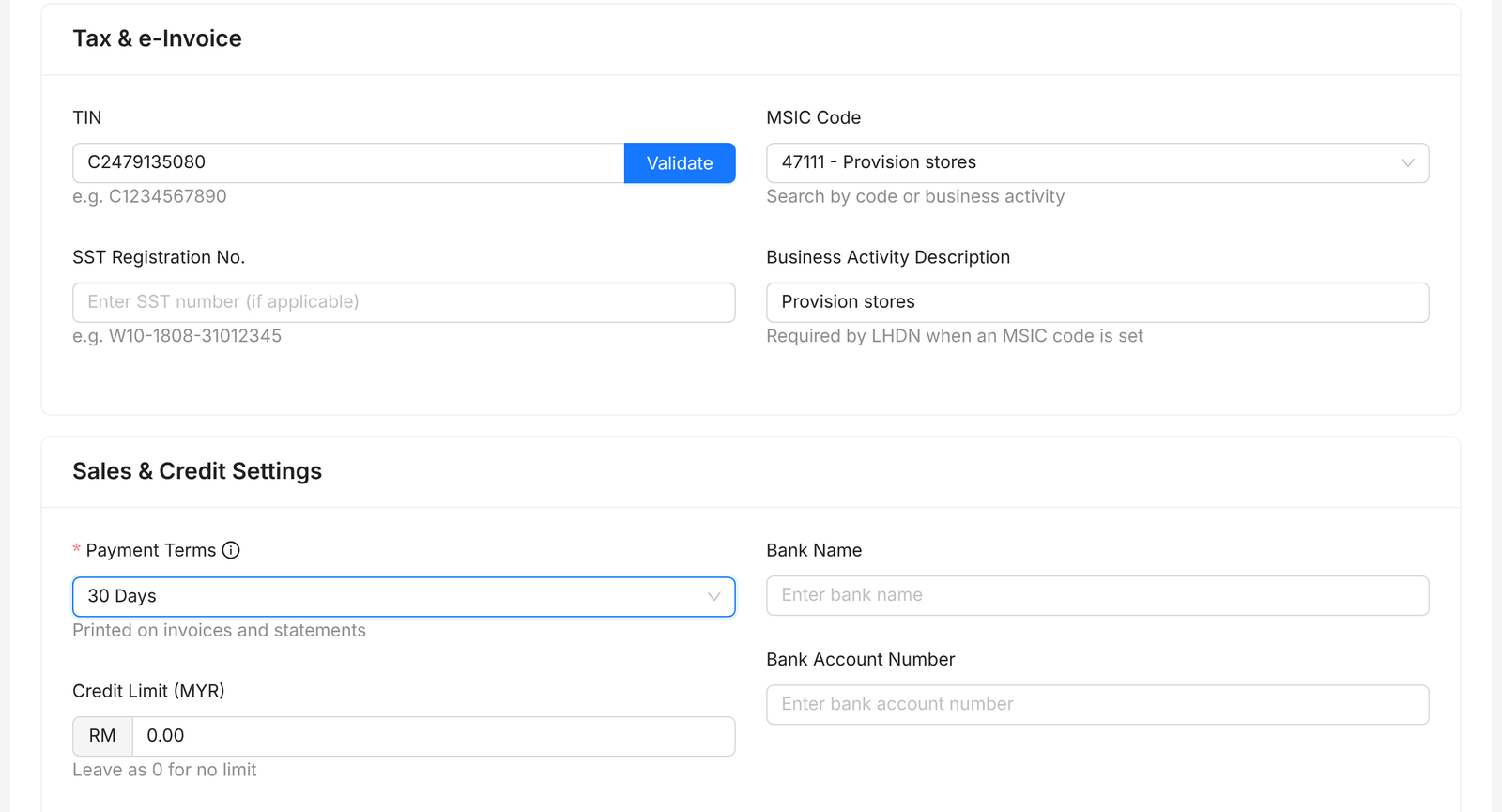
Tip: Validate the TIN now, so you don't need to check it before every invoice.
FAQ
Why can't I click Validate?
Validate needs both the TIN and the registration number. Fill in both, then try again.
Where does the Customer ID come from?
Duitbooks creates it when you save the customer.
How do I hide a customer I no longer sell to?
Switch their Status to Inactive. Inactive customers don't show in selection lists.
Related
Create a sales invoiceBill a customer for what you sold. Mark it completed once it's right, so it counts in your reports.Submit an e-invoiceSend a completed sales invoice to LHDN through MyInvois. Duitbooks adds the e-invoice details and QR code to it.Add a supplierSave a supplier once. Their details fill in on every purchase and expense you record.