
Browse all guides
Get paid
Create a quotation
Send a customer your prices before they buy. When they say yes, turn it into a delivery order.
Before you start: Add the customer first, and the products you're quoting for.
Steps
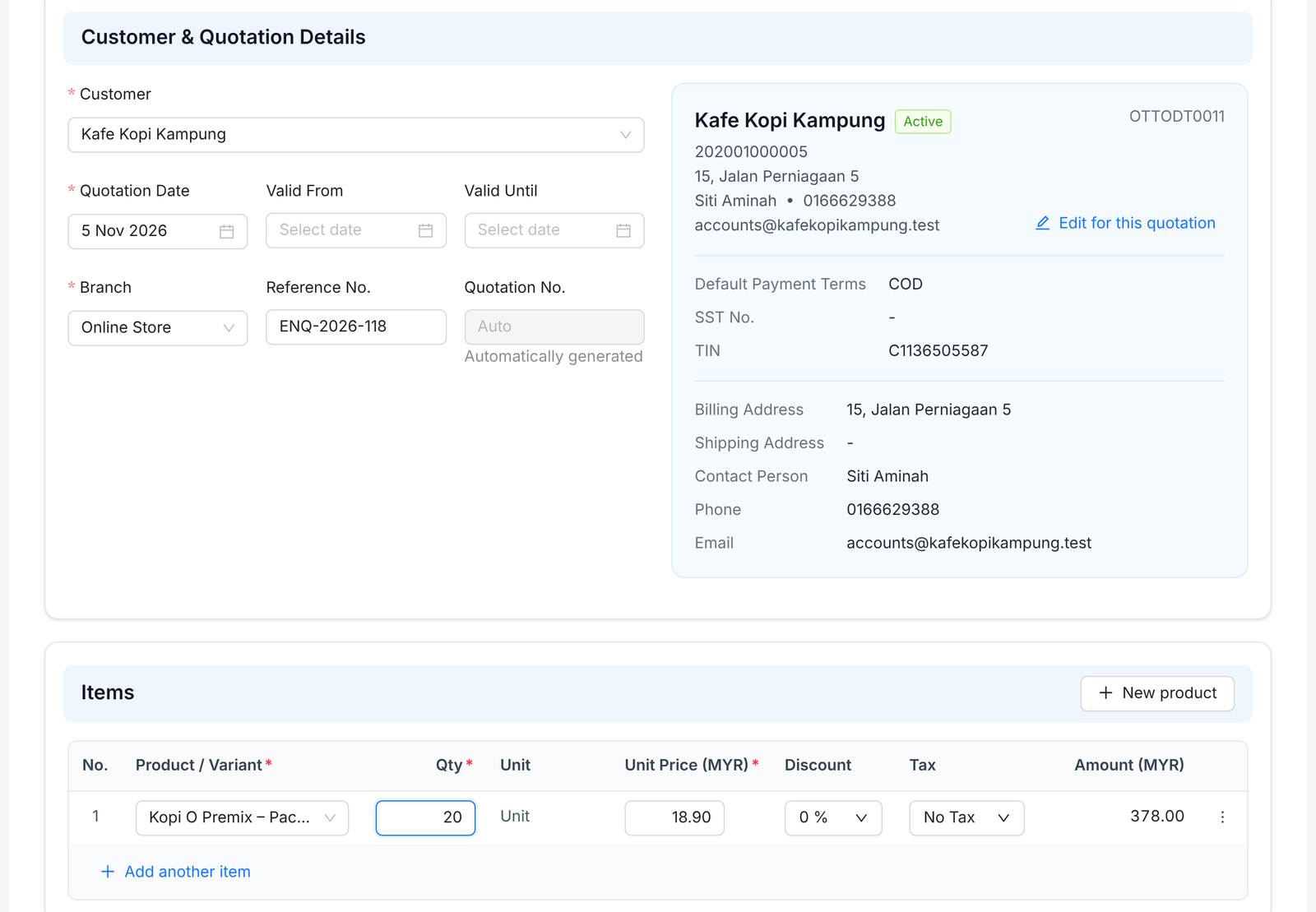
- 1Go to Sales › Quotation and click Create.
- 2Pick the Customer. Search by name or customer code.
- 3Set the Quotation Date, then Valid From and Valid Until.
- 4Pick the Branch. Add a Reference No. if the customer gave you an enquiry number.
- 5Under Items, search for each product and enter the quantity. Click Add another item for more lines.
- 6Add Customer Notes, e.g. prices exclude delivery. They print on the quotation.
- 7Click Create Quotation.
Tip: Customer accepted? Open the quotation and click Transfer to turn it into a delivery order. From the delivery order, click Transfer again to create the sales invoice.
FAQ
Where is the quotation number?
Duitbooks creates it when you save the quotation.
How do I send the quotation as a PDF?
In the quotation list, open the more (⋯) menu on the row and download the PDF.
Can I change a quotation after creating it?
Yes. Click Edit on the quotation, make your changes, then click Save Changes.
Related
Create a sales invoiceBill a customer for what you sold. Mark it completed once it's right, so it counts in your reports.Add a customerSave a customer once. Their details fill in on every quotation and invoice, ready for e-invoicing.Record a payment receivedWhen a customer pays, record the money in and link it to their invoices. Their balance updates for you.