
Browse all guides
Bank
Reconcile your bank
Upload your bank statement and match each line to what's in your books, so you know they agree.
Before you start: Download your bank statement as a PDF. Right now, Duitbooks reads Maybank statements.
Steps
- 1Go to Business Intelligence › Bank Reconciliation.
- 2Drop your statement PDF into the upload box, pick the Payment Account it belongs to and click Extract.
- 3Check the transactions Duitbooks read from the statement, then open the review screen.
- 4Look at Bank Statement on the left and Account Entries on the right. Duitbooks suggests likely matches.
- 5Tick a statement row and its matching entry, then click Apply Match.
- 6A line on the statement isn't in your books yet? Click Create Transaction and pick Expense, Income or Payment Voucher.
- 7An entry in your books isn't on this statement? Select it and click Unreconciled.
- 8Check the Reconciliation Summary. Difference (A − B) should be RM 0.00.
- 9Add a note if you like, then click Complete. You can only complete a reconciliation when the difference is RM 0.00.
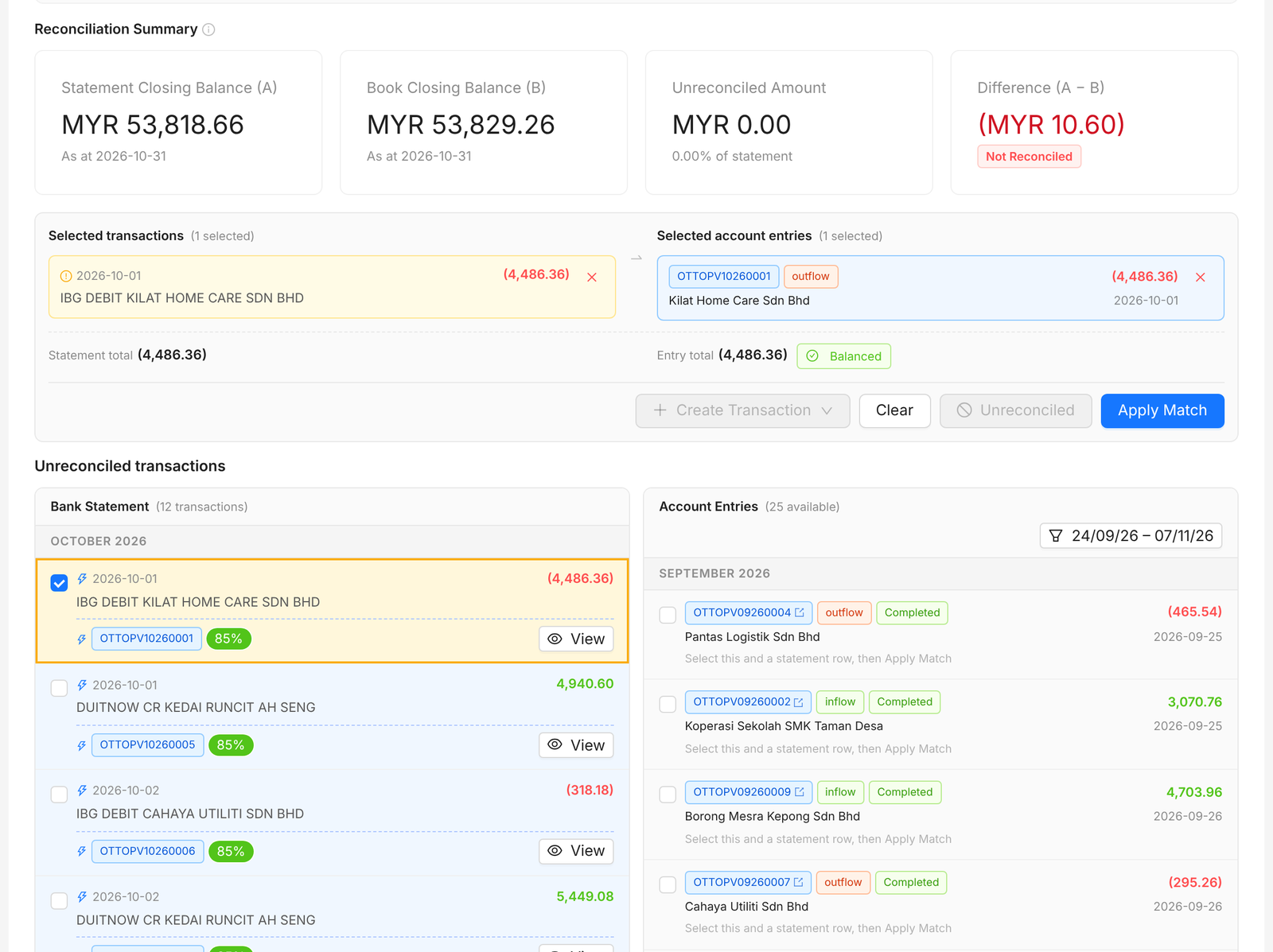
Tip: You can match one statement line to several entries, or one entry to several lines. Tick them all, then click Apply Match once.
FAQ
Which statements can I upload?
PDF statements only. Right now, Duitbooks reads Maybank statements.
I matched the wrong lines.
Open the Matched tab and unmatch them. They go back to the review screen.
What if the difference isn't zero?
Look for statement lines with no match, and entries left unmatched. Create the missing transactions or mark entries unreconciled until it balances.
Related
Add a bank or cash accountAdd each bank account and cash box you use. Every payment in and out goes through one of them.Record a payment receivedWhen a customer pays, record the money in and link it to their invoices. Their balance updates for you.Record an expenseEnter bills that aren't for stock, like rent, utilities or services, so they count in your P&L.