
Browse all guides
Get paid
Create a sales invoice
Bill a customer for what you sold. Mark it completed once it's right, so it counts in your reports.
Before you start: Add the customer and the products you sold. You can also create a product while you fill in the invoice.
Steps
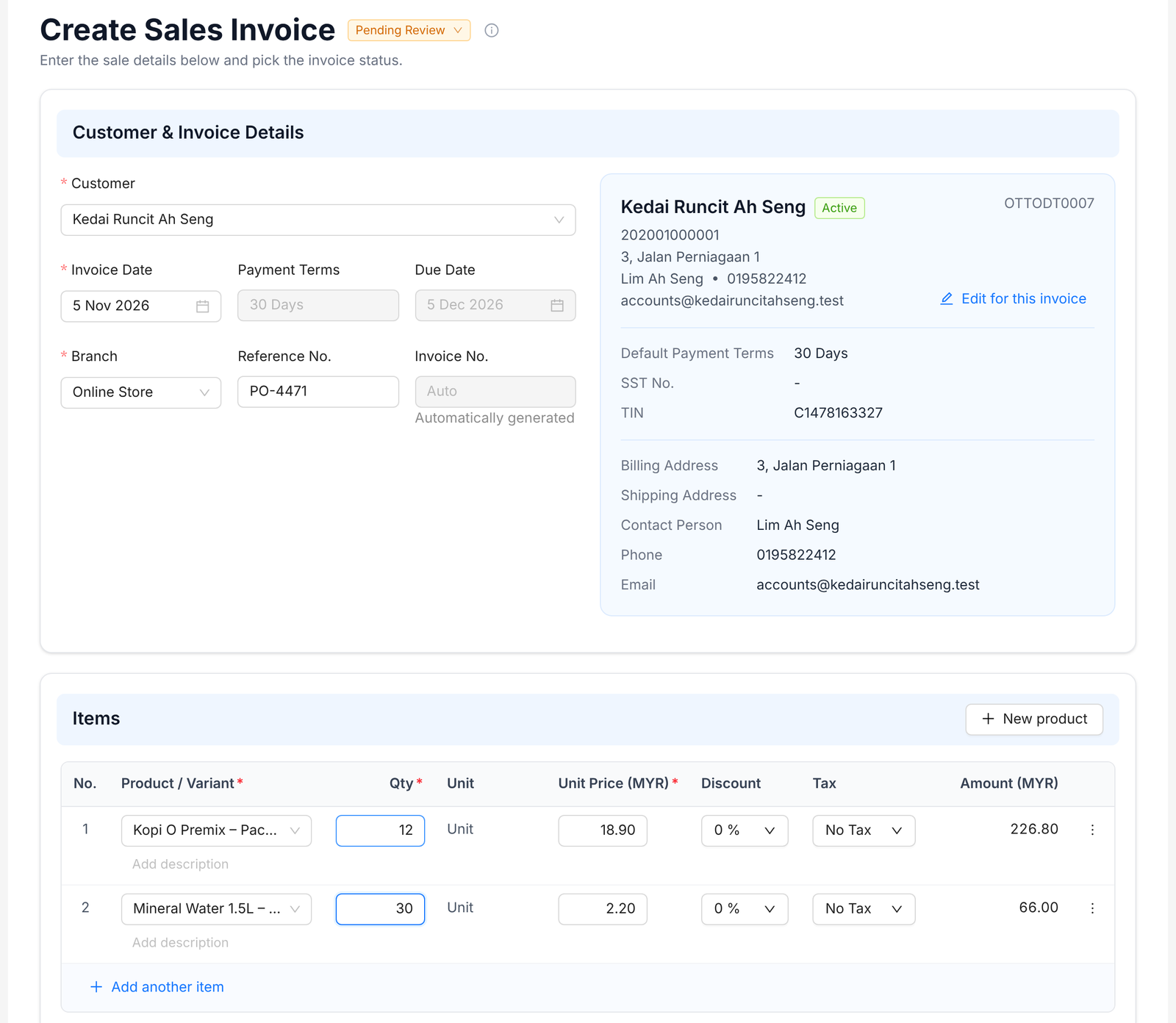
- 1Go to Sales › Pending Review and click Create.
- 2Pick the Customer. Their billing address and contact fill in for you.
- 3Check the Invoice Date, Payment Terms and Due Date.
- 4Pick the Branch. Add the customer's PO number as the Reference No. if they gave you one.
- 5Under Items, search for each product, enter the quantity and check the price, discount and tax. Click Add another item for more lines.
- 6Add Customer Notes to print on the invoice, and attach any supporting files.
- 7Click the status next to the title and pick Pending Review or Completed.
- 8Click Create Invoice.
Tip: Pending invoices count toward the customer's balance. Mark an invoice Completed once you've checked it, so it shows in your P&L and you can take payments and submit it as an e-invoice.
FAQ
Why can't I edit my invoice?
Completed and cancelled invoices can no longer be edited. Only pending invoices can be changed.
Can I complete many invoices at once?
Yes. In Sales › Pending Review, tick the invoices, then choose Complete selected.
Where does the invoice number come from?
Duitbooks creates it when you save, starting with your Business Code.
Related
Submit an e-invoiceSend a completed sales invoice to LHDN through MyInvois. Duitbooks adds the e-invoice details and QR code to it.Record a payment receivedWhen a customer pays, record the money in and link it to their invoices. Their balance updates for you.Issue a credit noteReduce what a customer owes for returned goods or an invoice mistake, and link it to the original e-invoice.