
Browse all guides
Getting started
Set up your business
Add your company details once. Duitbooks uses them on every invoice, report and e-invoice.
Before you start: Have your SSM registration number, registered address, TIN and MSIC code ready. If you're SST registered, have your SST number too.
Steps
- 1Open the account menu in the header and click Business Admin, then Business Information.
- 2On the Business Information tab, enter the Legal Business Name, Display Name, Registration No. (SSM) and Business Type.
- 3Fill in the Registered Address (as per SSM). Add a Shipping Address only if you deliver goods from a different place.
- 4Add your Phone Number and Email Address under Contact Details.
- 5Set a Business Code of up to 5 characters, e.g. HL. It becomes the prefix for your invoice numbers.
- 6Open the Financial Year tab and pick your Financial Year End and Base Currency.
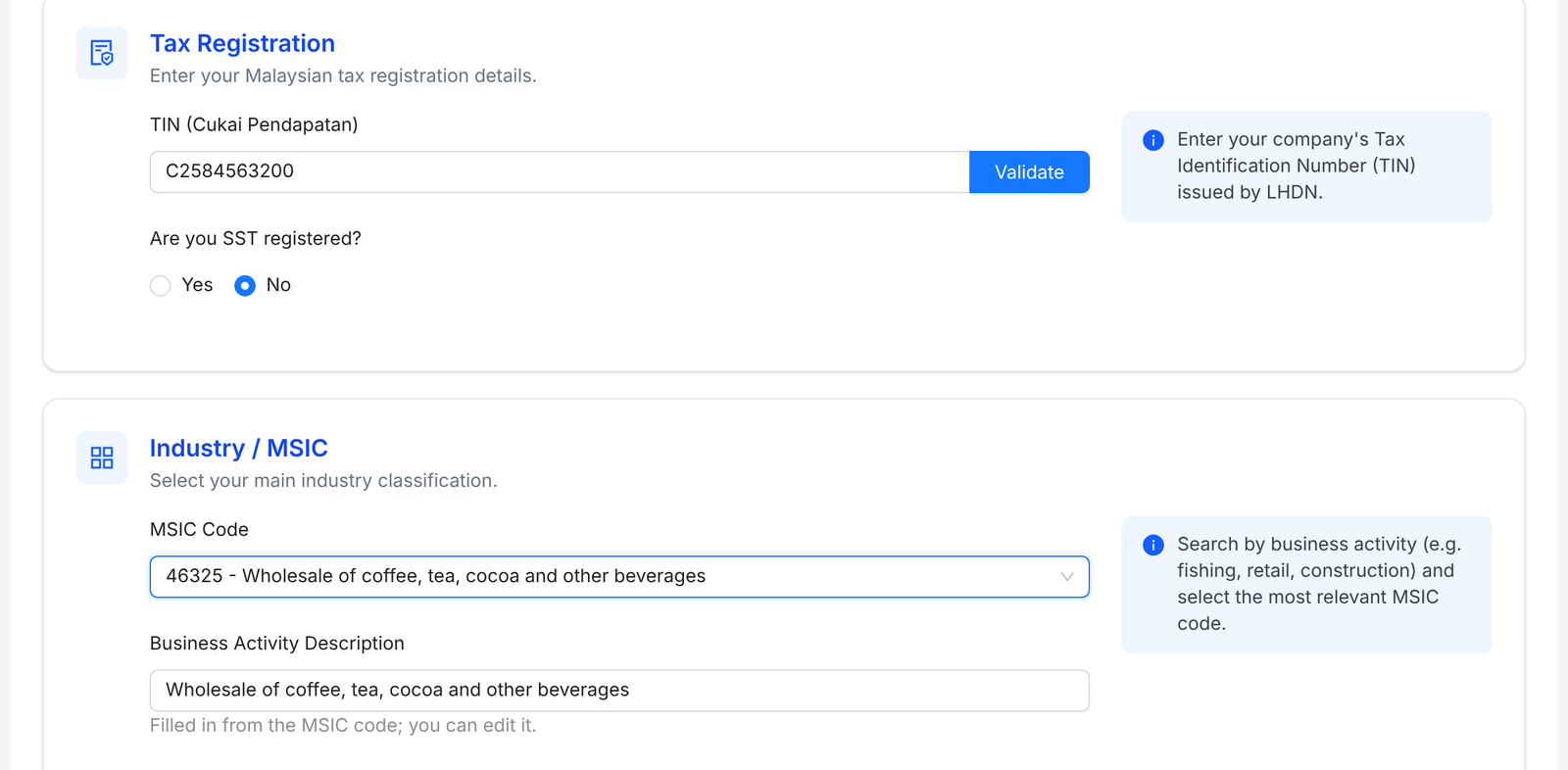
- 7Open the Tax & e-Invoice tab. Under Tax Registration, enter your TIN (Cukai Pendapatan) and click Validate.
- 8Answer Are you SST registered? If yes, enter your SST Registration No. and SST Rate.
- 9Pick your MSIC Code and check the Business Activity Description.
- 10Click Save Changes.
Tip: Business Admin shows a short setup checklist. Finish it by adding your logo and stamp in Logos and Templates, so they print on your invoices.
FAQ
Why can't I click Validate?
Validate needs both your TIN and your registration number. Fill in both, then try again.
What is the Business Code for?
It's the prefix Duitbooks puts in front of your invoice numbers and other document numbers.
Do I need a shipping address?
No. It's optional, for when you deliver goods from an address that isn't your registered one.
Related
Connect MyInvoisLink your MyInvois account so you can send e-invoices to LHDN straight from Duitbooks.Add a bank or cash accountAdd each bank account and cash box you use. Every payment in and out goes through one of them.Add a customerSave a customer once. Their details fill in on every quotation and invoice, ready for e-invoicing.