
Browse all guides
Getting started
Connect MyInvois
Link your MyInvois account so you can send e-invoices to LHDN straight from Duitbooks.
Before you start: Get your Client ID and Client Secret from the MyInvois portal, and make sure your TIN is saved in Business Information.
Steps
- 1Open the account menu in the header and click Business Admin, then Business Information.
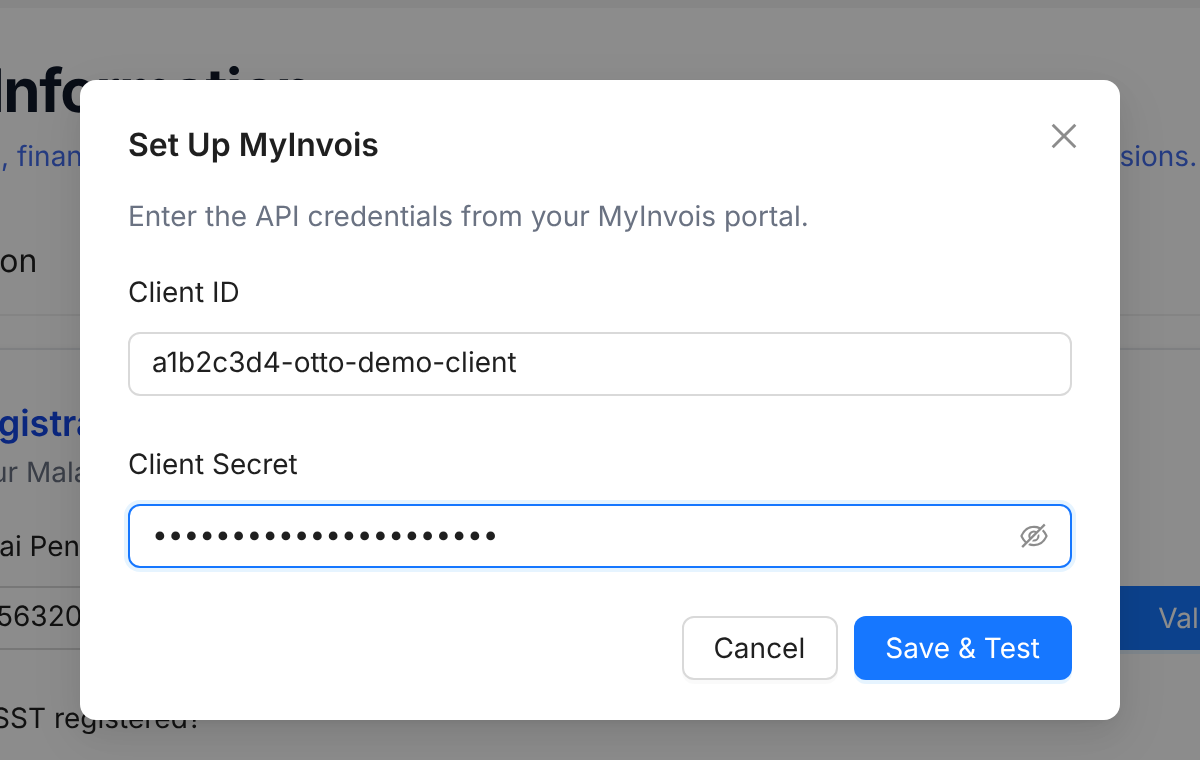
- 2Open the Tax & e-Invoice tab, scroll down to e-Invoice (MyInvois) and click Set Up MyInvois.
- 3Paste your Client ID and Client Secret.
- 4Click Save & Test. Duitbooks checks the credentials with MyInvois and saves them if they work.
- 5Look for the Connected status in the e-Invoice section.
Tip: Your credentials are stored securely and only authorised users can see them. If they change in the MyInvois portal, click Update Credentials and test again.
FAQ
It says the credentials could not be verified. What now?
Copy the Client ID and Client Secret again from the MyInvois portal, with no extra spaces, then click Save & Test again.
What does Not Tested mean?
Credentials are saved but haven't been checked yet. Open the window and click Save & Test.
Can I submit e-invoices without connecting?
No. Duitbooks needs your Client ID and Client Secret before it can submit anything to LHDN.
Related
Submit an e-invoiceSend a completed sales invoice to LHDN through MyInvois. Duitbooks adds the e-invoice details and QR code to it.Set up your businessAdd your company details once. Duitbooks uses them on every invoice, report and e-invoice.Add a customerSave a customer once. Their details fill in on every quotation and invoice, ready for e-invoicing.