
Browse all guides
Get paid
Record a payment received
When a customer pays, record the money in and link it to their invoices. Their balance updates for you.
Before you start: Add the bank or cash account the money went into, and complete the invoices being paid.
Steps
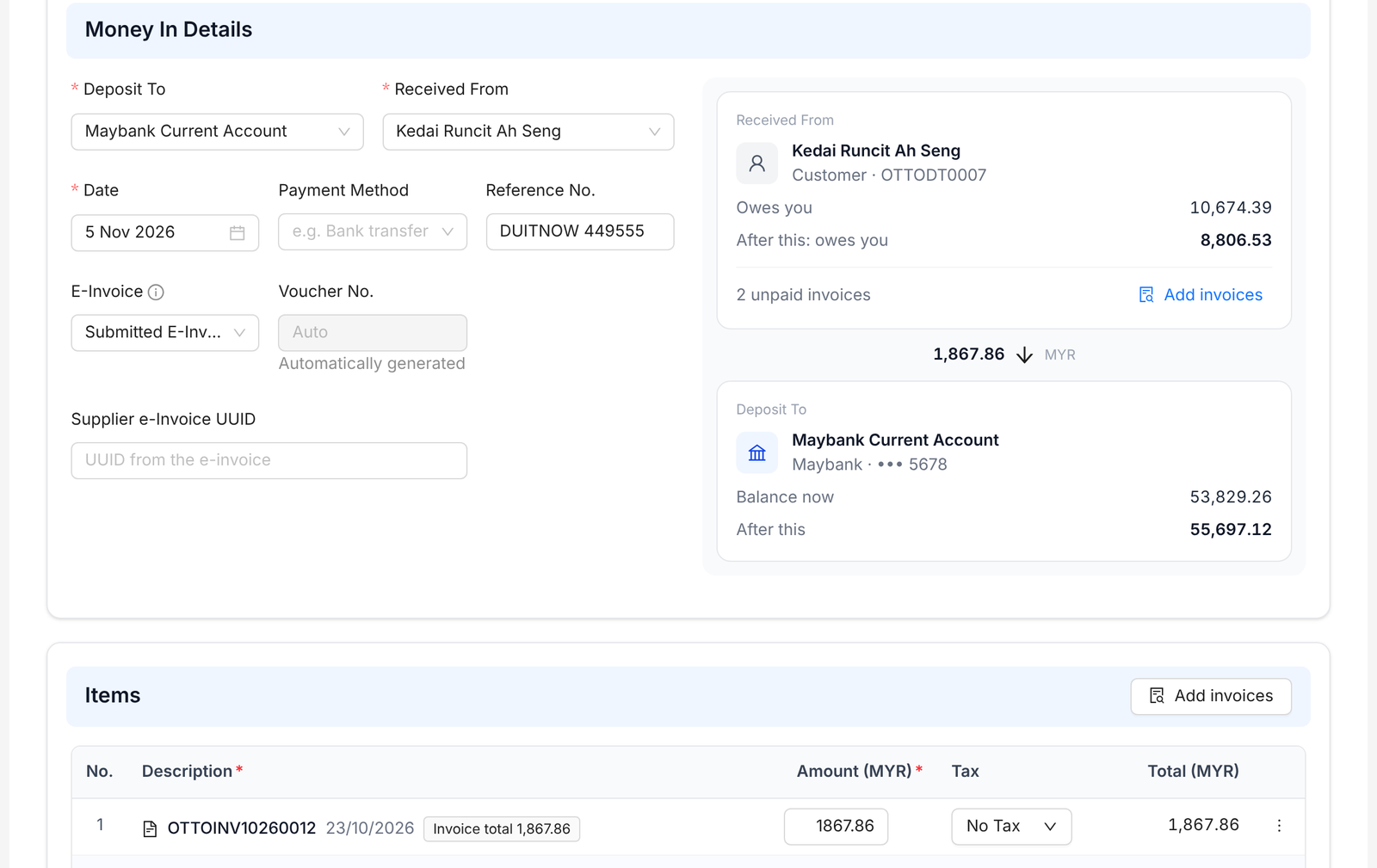
- 1Go to Cash & Bank Book › Pending Review and click Money In.
- 2Pick the account under Deposit To.
- 3Pick the customer under Received From.
- 4Set the Date, Payment Method and Reference No., e.g. the bank reference.
- 5Under Items, click Add invoices. Duitbooks lists the customer's outstanding invoices.
- 6Check the Payment Amount for each invoice and click Add, then Done.
- 7Check the panel on the right. It shows the customer's balance now and after this payment.
- 8Set the status to Completed once the money is in, then click Create Money In.
Tip: Attach the bank slip or receipt. It saves time when you reconcile your bank later.
FAQ
What's the difference between pending and completed?
Pending receipts aren't posted yet. Mark the receipt completed once the money is in. That posts it and updates the invoices it pays.
Can one payment cover several invoices?
Yes. Add every invoice the customer paid in the same Money In.
The customer only paid part of an invoice. What do I do?
Change the Payment Amount for that invoice to what they paid. The rest stays outstanding.
Related
Add a bank or cash accountAdd each bank account and cash box you use. Every payment in and out goes through one of them.Reconcile your bankUpload your bank statement and match each line to what's in your books, so you know they agree.Create a sales invoiceBill a customer for what you sold. Mark it completed once it's right, so it counts in your reports.