
Browse all guides
Pay and spend
Record an expense
Enter bills that aren't for stock, like rent, utilities or services, so they count in your P&L.
Before you start: Add the supplier. Have the bill or receipt ready to attach.
Steps
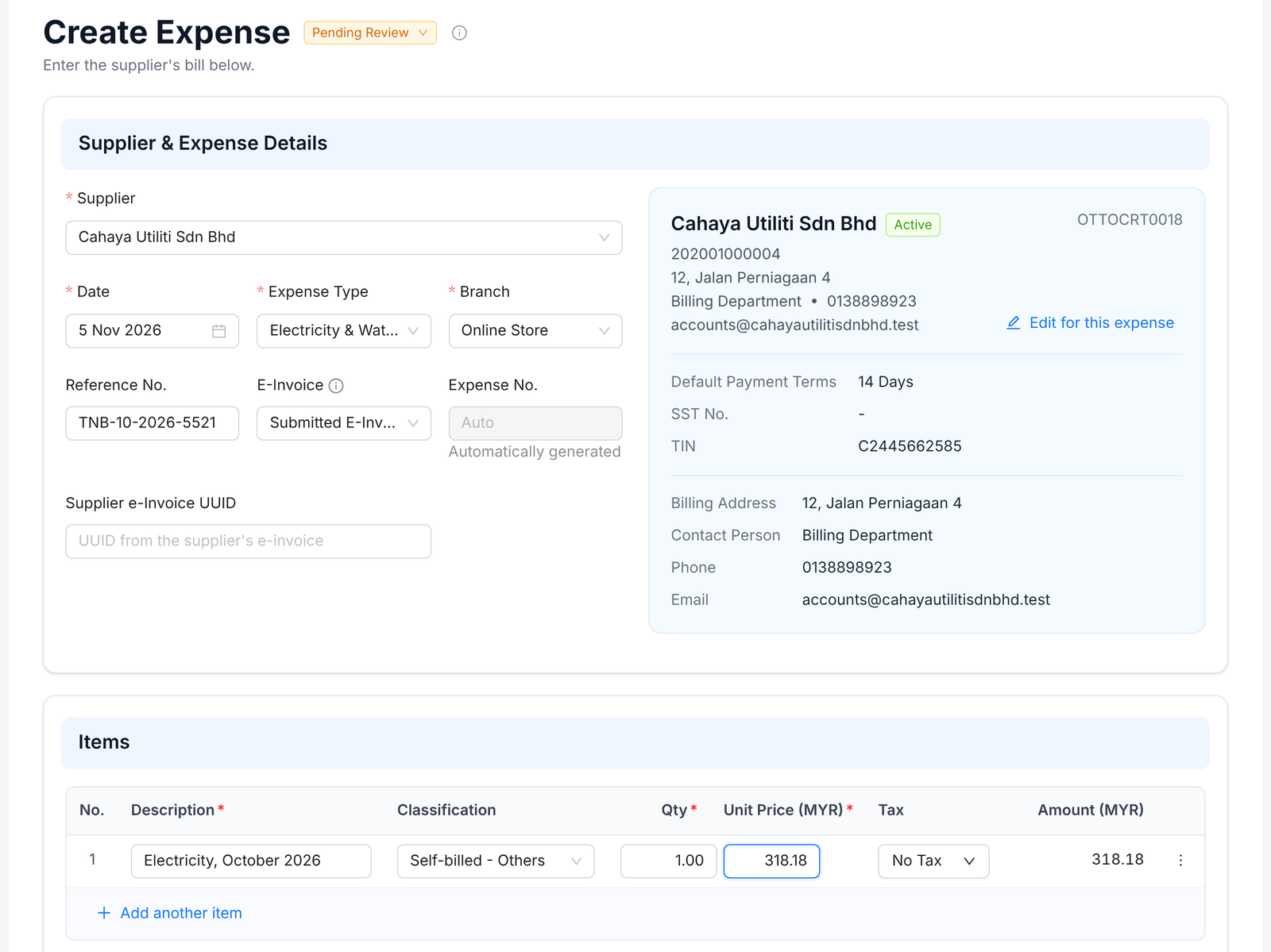
- 1Go to Expense › Pending Review and click Create.
- 2Pick the Supplier and set the Date.
- 3Pick the Expense Type, e.g. rent or utilities.
- 4Pick the Branch and enter the supplier's bill number as the Reference No.
- 5Under E-Invoice, pick Submitted E-Invoice if the supplier issued one and paste the Supplier e-Invoice UUID. Pick a self-billed type if you issue it for them.
- 6Under Items, describe each charge, pick a Classification and enter the quantity, unit price and tax.
- 7Attach the bill, set the status to Completed, then click Create Expense.
Tip: Expense types come from Expense › Expense Accounts. Add your own there, e.g. one for each kind of bill you pay often.
FAQ
What does a completed expense do?
Pending expenses count toward what you owe the supplier. Completed ones also show in your P&L, payments and e-invoicing.
Expense or purchase: which do I use?
Use an expense for bills without products. Use a purchase when you buy products you track.
Can I record several charges on one bill?
Yes. Click Add another item for each charge.
Related
Record a purchaseEnter a supplier's invoice for stock or goods you bought. Scan it and Duitbooks fills in most of the form.Add a supplierSave a supplier once. Their details fill in on every purchase and expense you record.Add a bank or cash accountAdd each bank account and cash box you use. Every payment in and out goes through one of them.